Module 3 Formstorming

Weekly Activity Template

Saksham Anand


Project 3


Module 3

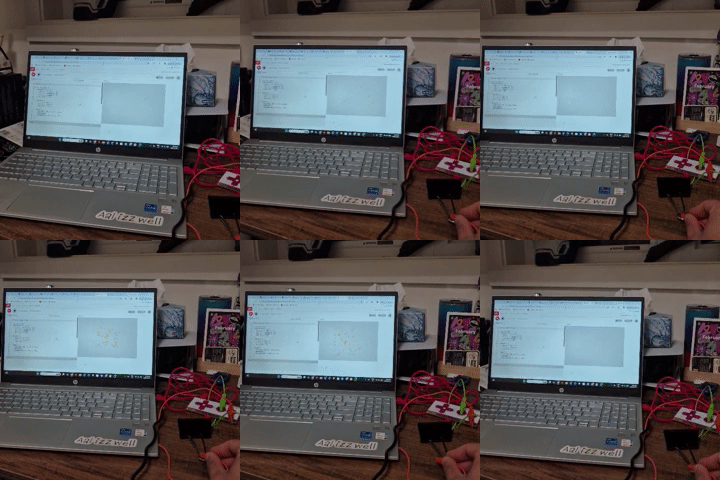
Module 3, Activity 1 is about exploring creative coding by using Makey Makey buttons with p5.js to build and document 25 interactive physical digital experiments.

Activity 1

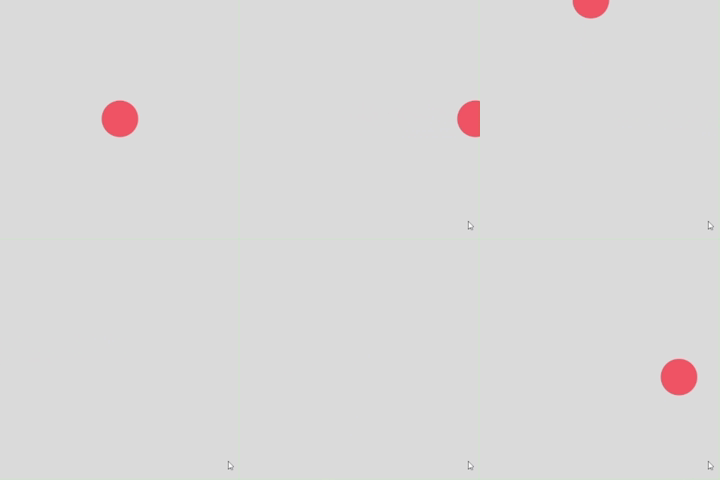
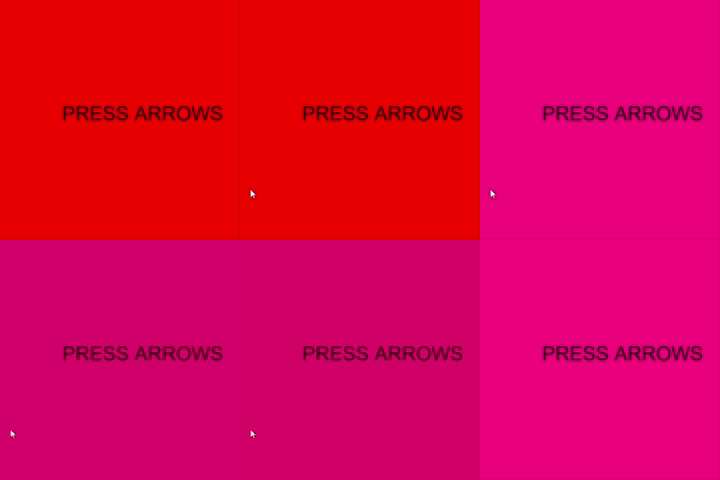
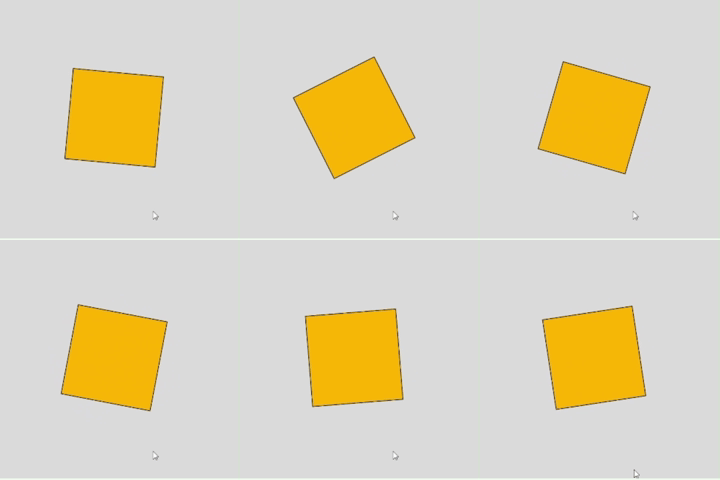
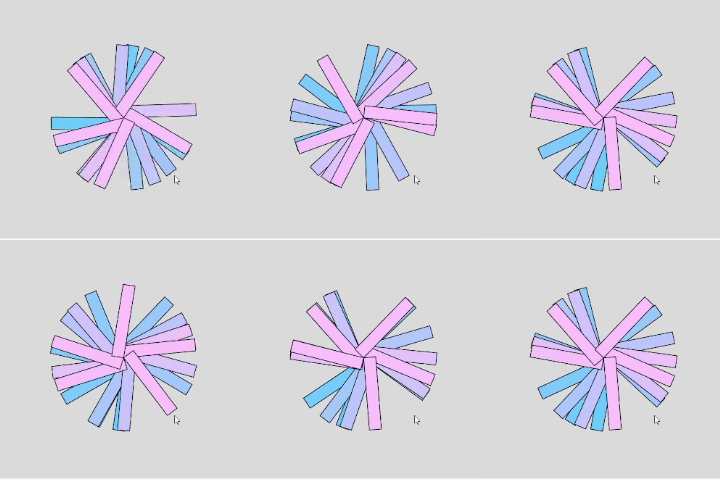
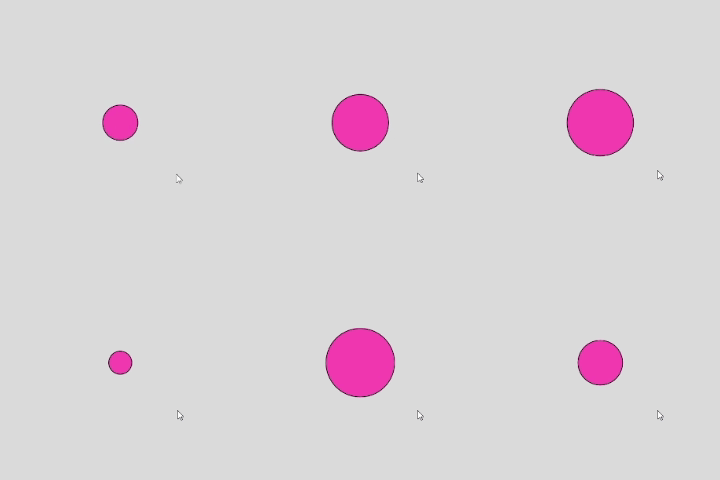
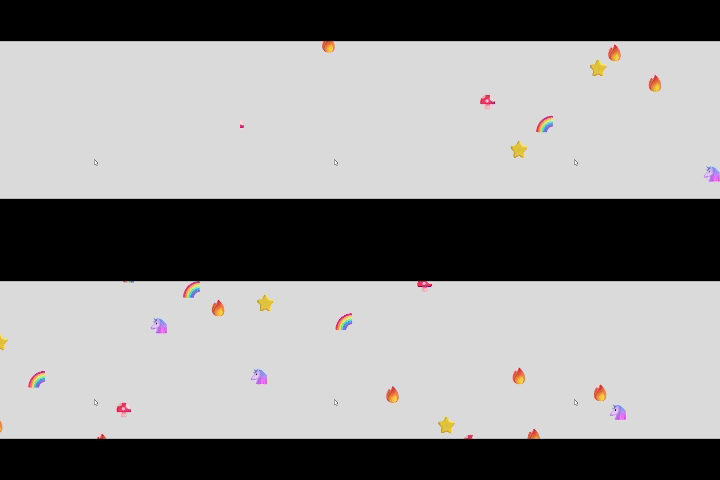
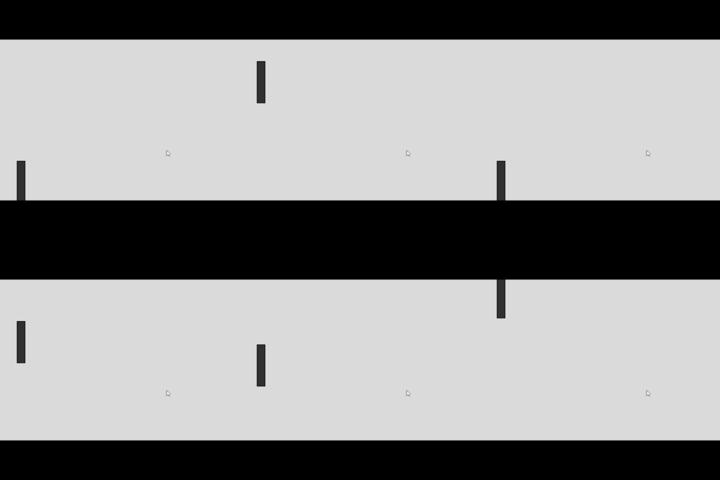
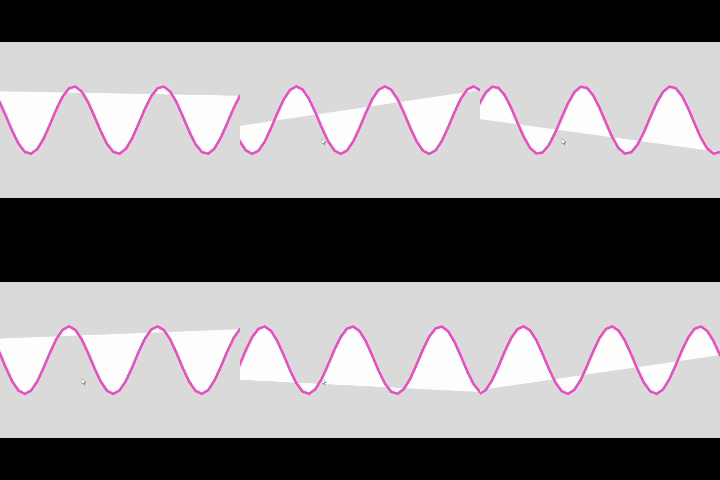
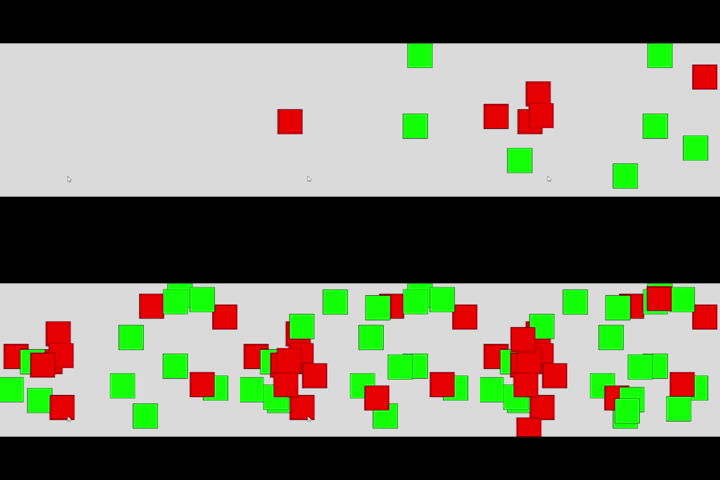
Press SPACEBAR - the canvas background randomly changes color. Simple interactive flash effect Press ARROW KEYS - moves a circle around the screen in the direction pressed. A basic motion interaction. Press UP_ARROW - circle grows, DOWN_ARROW - circle shrinks. Interactive scaling effect. Press LEFT/RIGHT ARROWS - changes background hue through rainbow colors. Shows color cycling interaction. Press SPACEBAR - spawns a small circle at a random position, which grows over time. Fun, dynamic pattern creation. Press LEFT/RIGHT ARROWS - manually rotate a central square, while it slowly rotates on its own. Visual rotation interaction. Press ARROW KEYS - changes direction and speed of a bouncing ball. Interaction combines physics + control. Press SPACEBAR - creates a burst of particles that spread and fade out. Explosive visual effect. Hold ARROW KEYS - draws a fading trail following the mouse. Creates a soft, motion-based drawing effect. Press SPACEBAR - resets a continuously spinning spiral. Automatic rotation with reset interaction. Press any letter key - typed letter floats upward, shrinking as it moves. Text-based generative animation. Press SPACEBAR - text quickly grows in size, then shrinks back smoothly. Animated scaling effect. Press R, G, or B keys - changes the background’s red, green, or blue component randomly. Interactive color mixing. Press any key - adds a line connecting random points. Creates evolving abstract line patterns. Press UP_ARROW - spawns shapes moving upward (gravity effect), DOWN_ARROW → clears shapes. Simulates gravity interaction. Press SPACEBAR - generates a random 8-vertex polygon at the center. Geometric generative design. Press any key - gradually darkens the canvas. Interaction creates a fade-to-black visual effect. Press UP_ARROW - increases color saturation, DOWN_ARROW - decreases it. Interactive color gradient control. Press SPACEBAR - shoots colorful confetti pieces in random directions. Celebration-style visual effect. Hold UP_ARROW - makes a central circle pulse bigger and smaller. Continuous pulsating interaction. Press SPACEBAR - spawns emojis falling from the top of the canvas. Fun interactive visual pattern. Press UP/DOWN ARROWS - moves a paddle vertically along the left side of the screen. Simulates a basic game mechanic. Press LEFT_ARROW - slows animation, RIGHT_ARROW - speeds up. Displays a sine-wave pattern responding to keys. Press LEFT_ARROW - adds a green rectangle, RIGHT_ARROW - adds a red rectangle at random positions. Generative pattern with color control. Press any key - draws random lines across the canvas, removing older lines after 40. Dynamic, generative abstract art interaction.

Activity 2
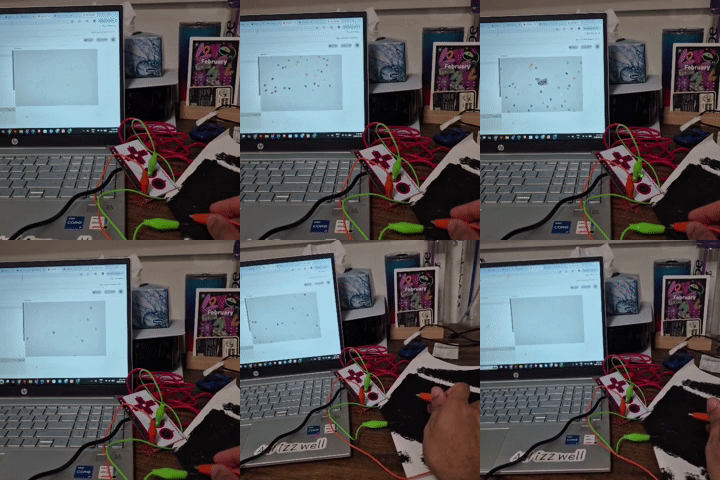
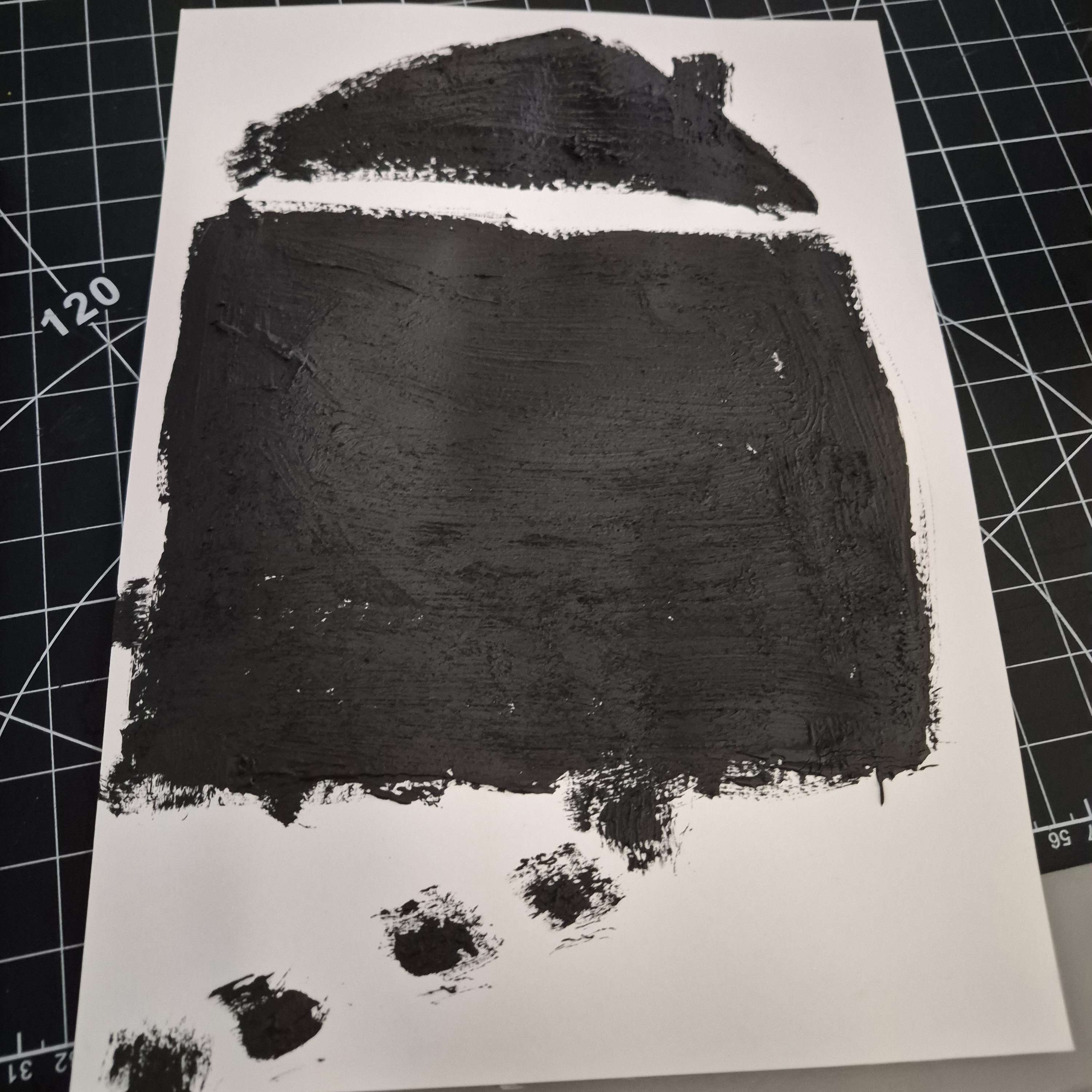
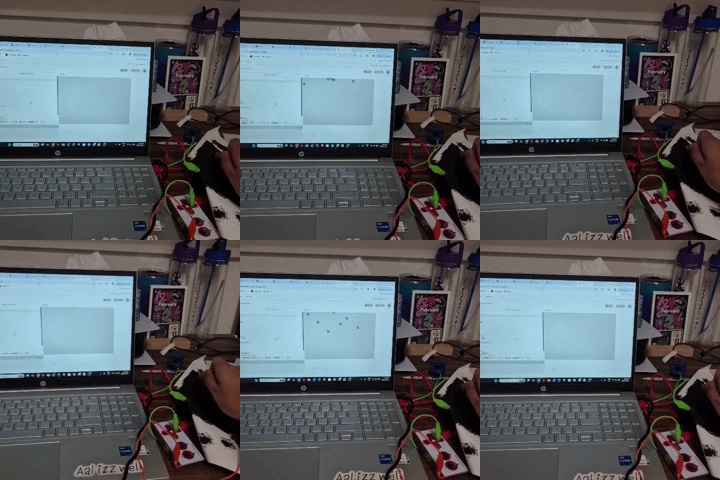
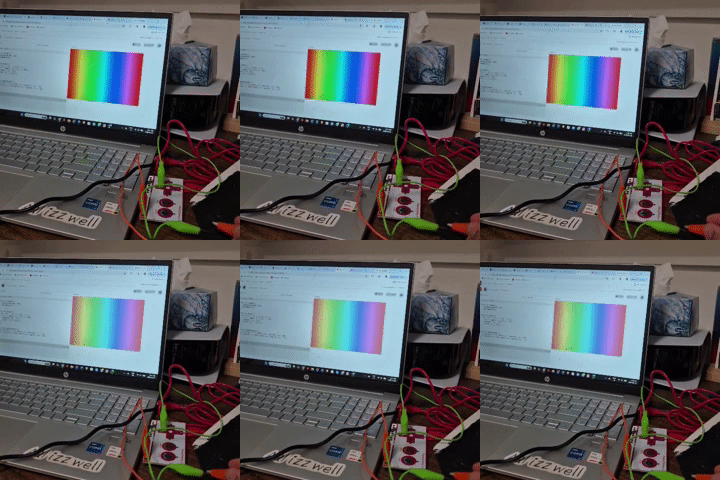
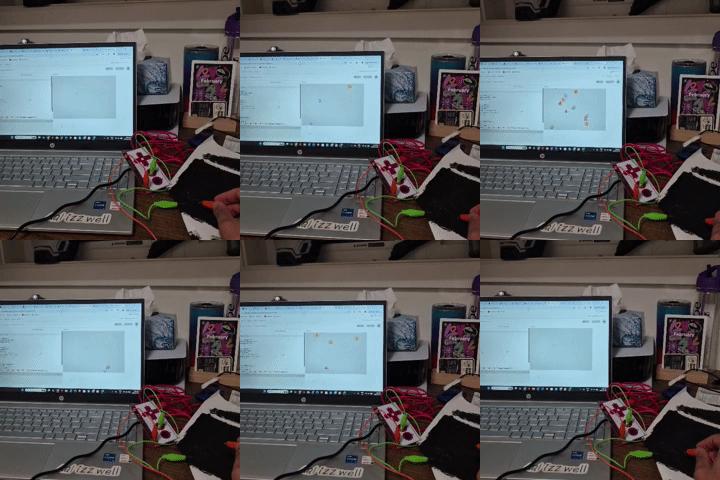
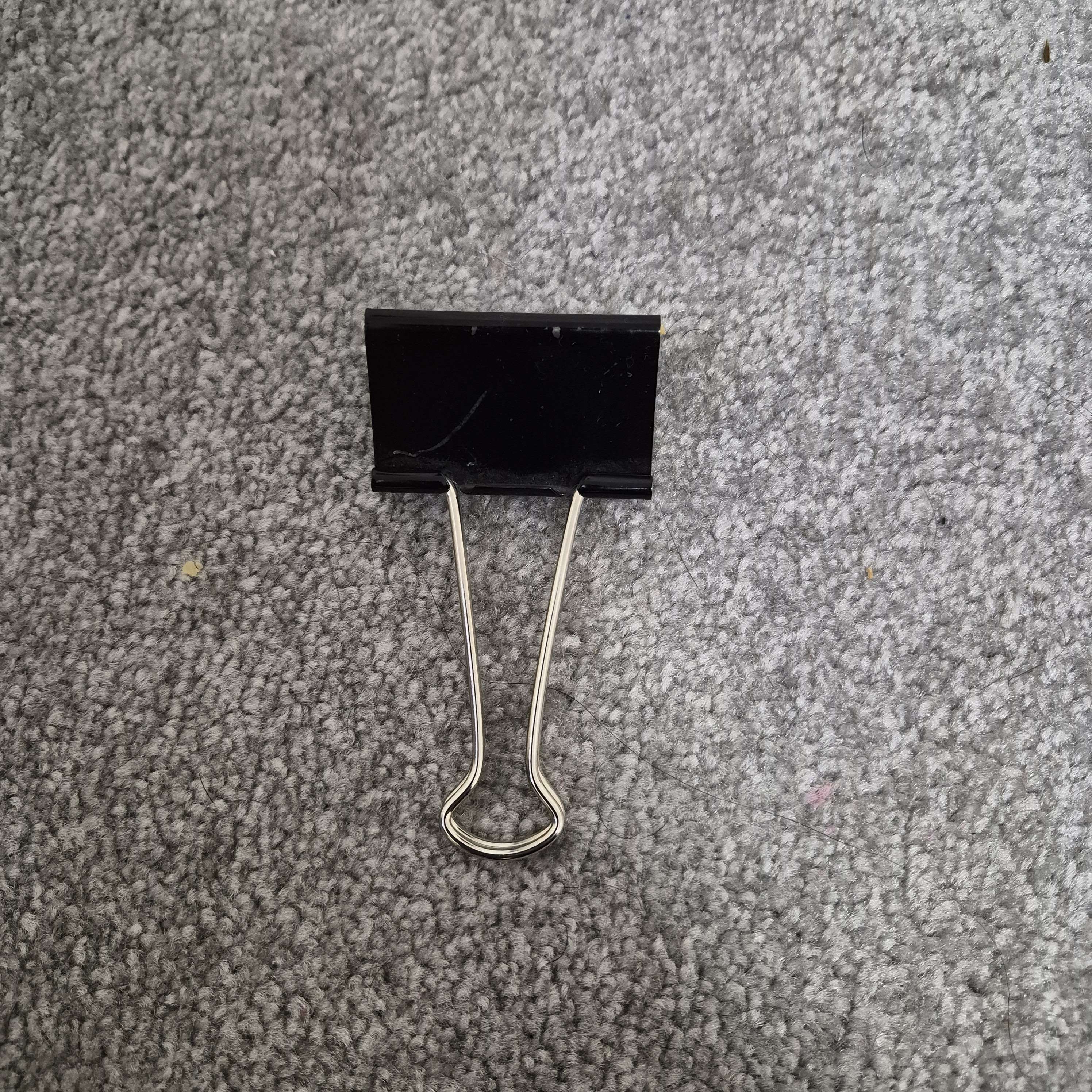
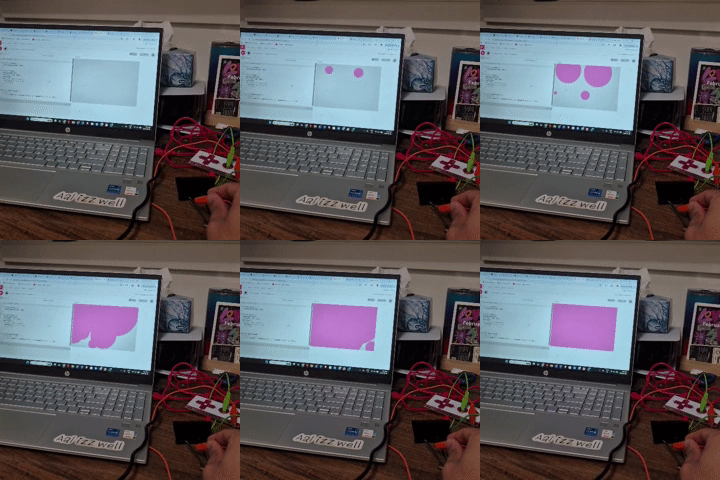
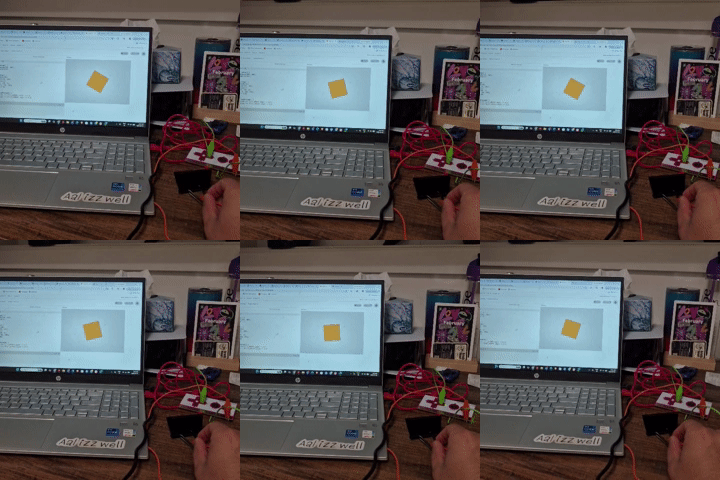
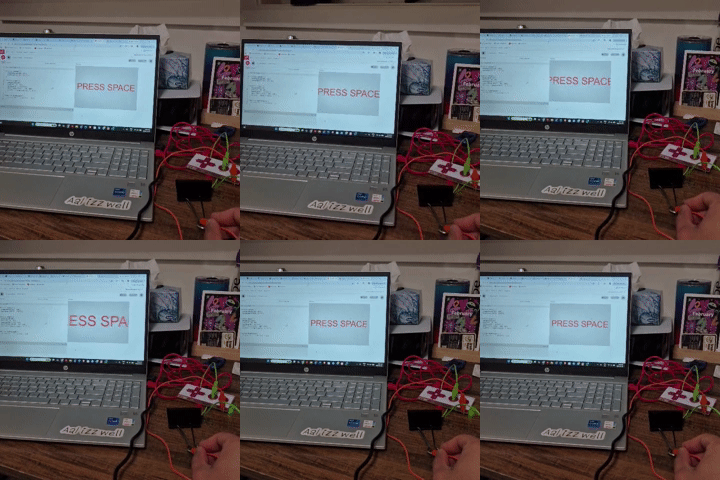
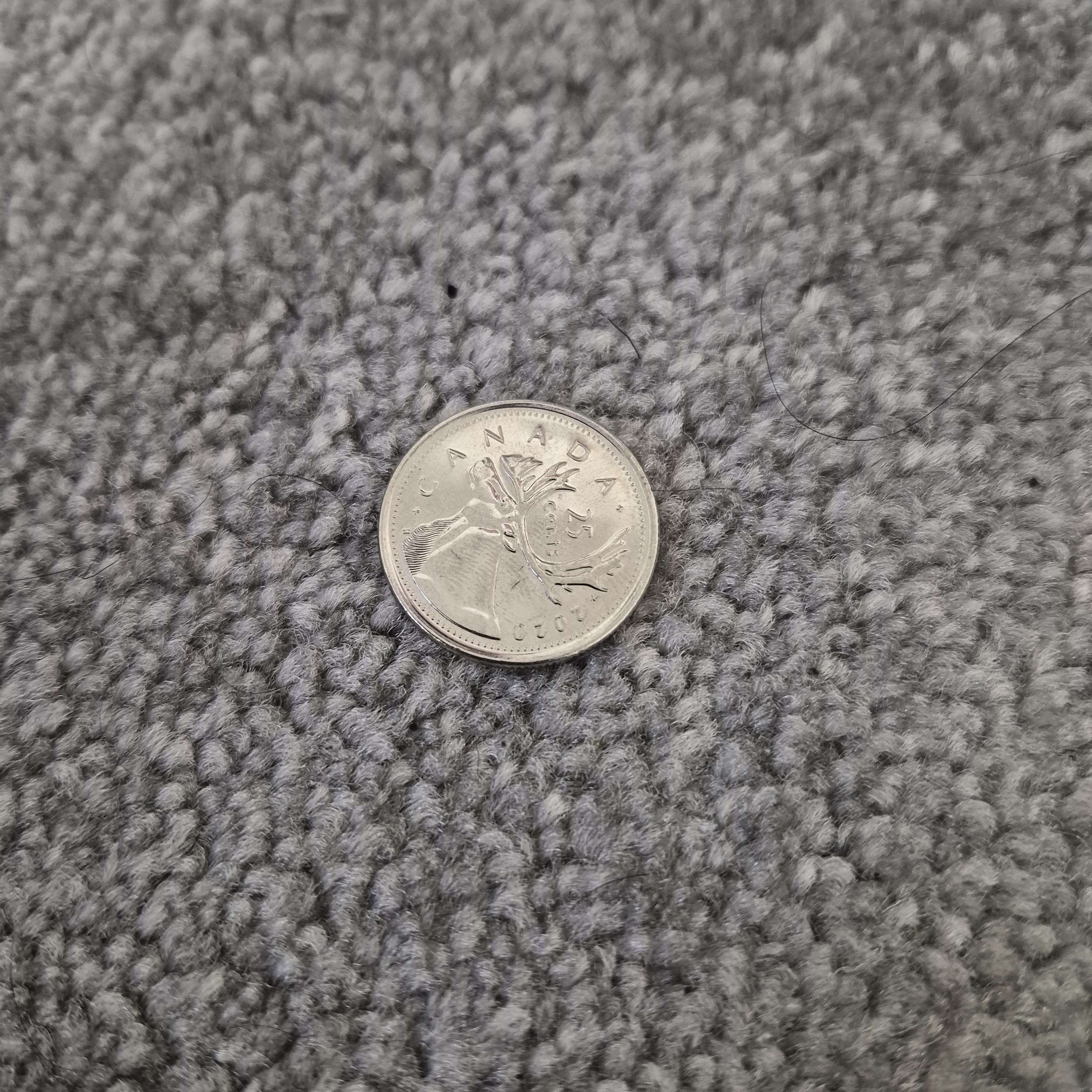
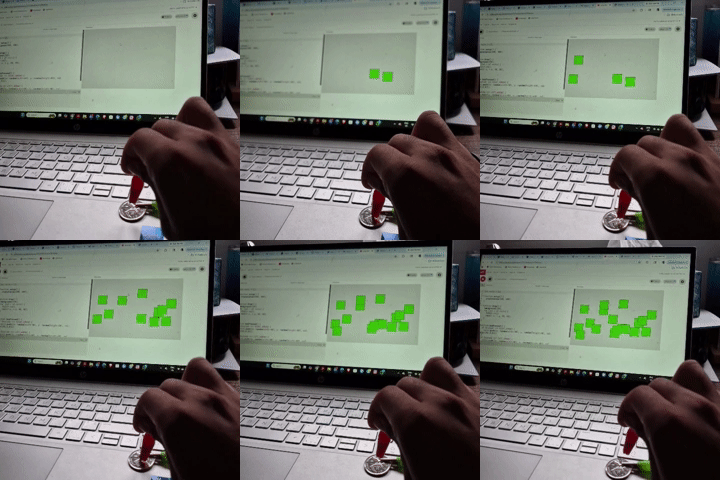
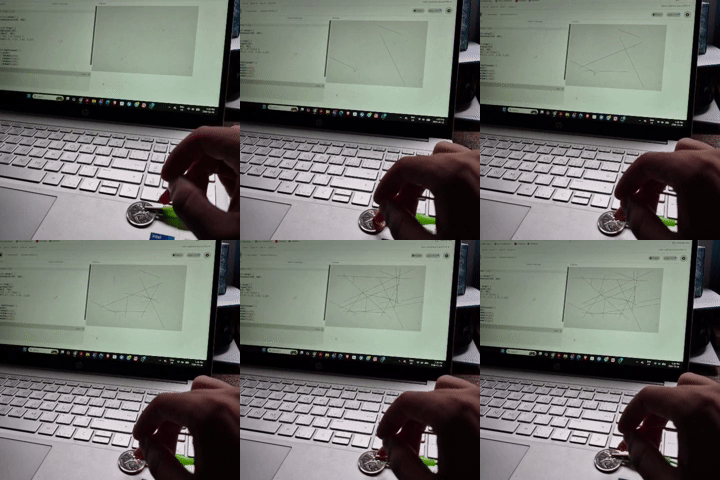
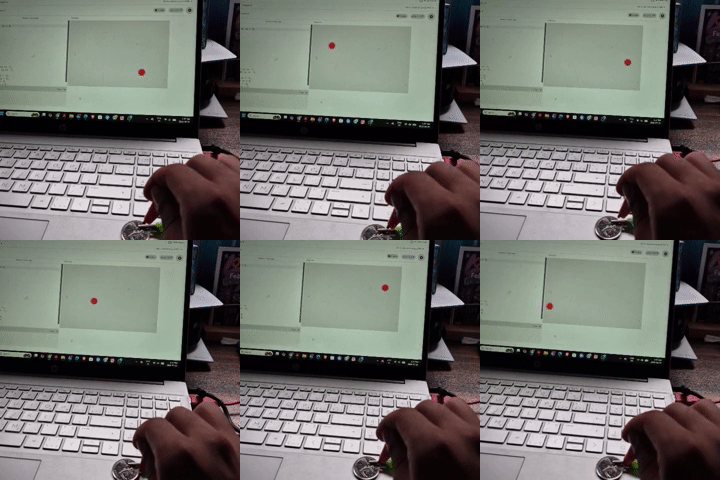
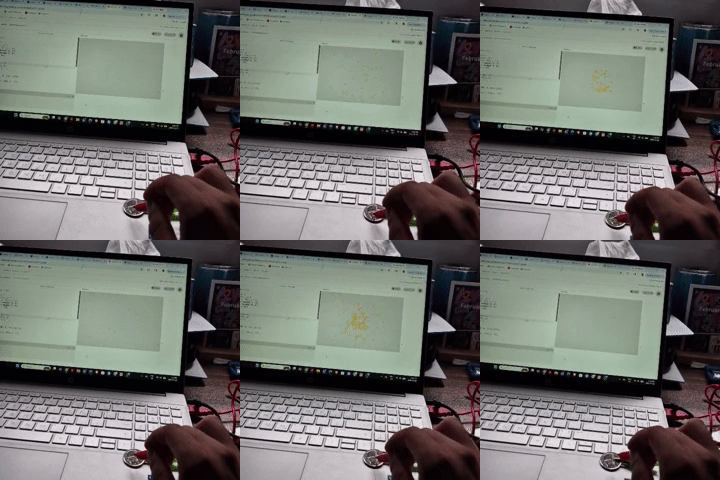
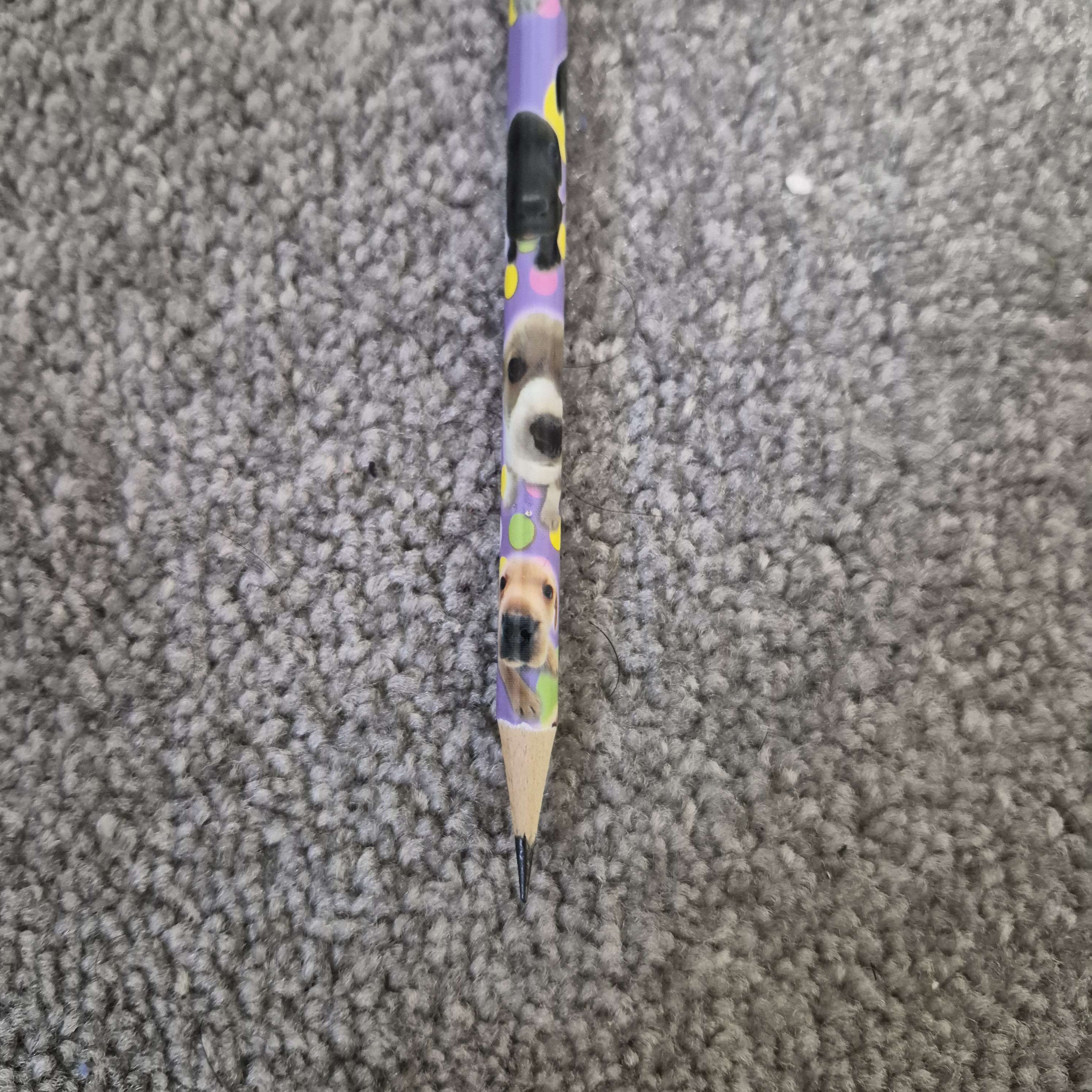
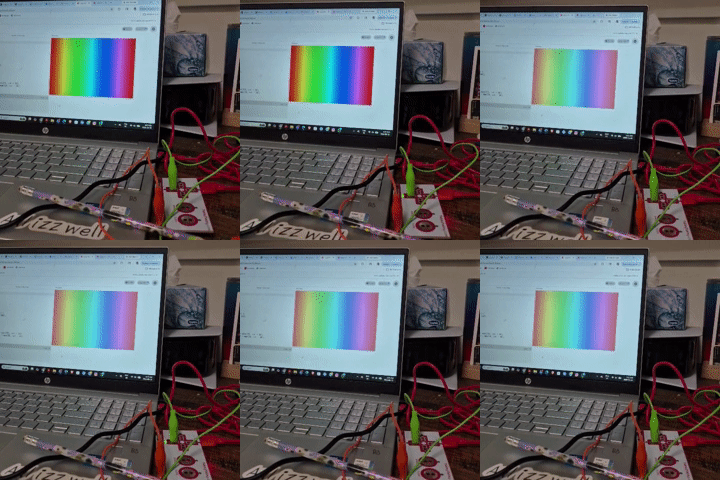
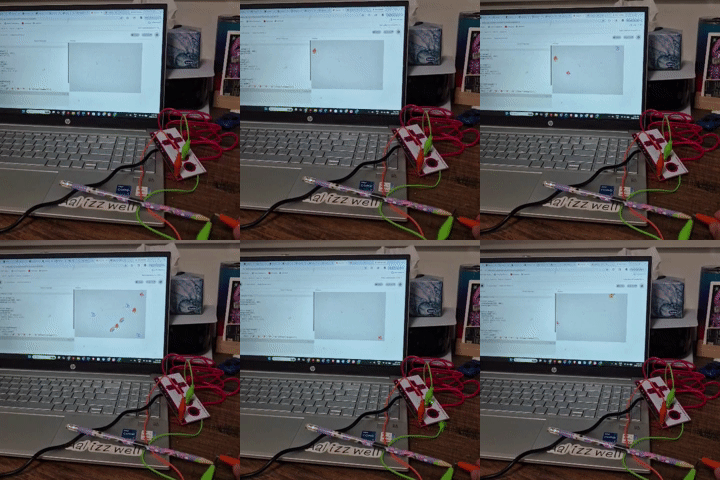
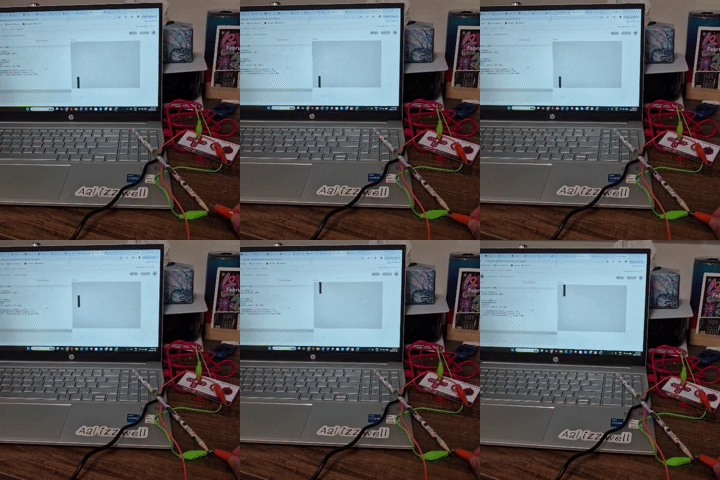
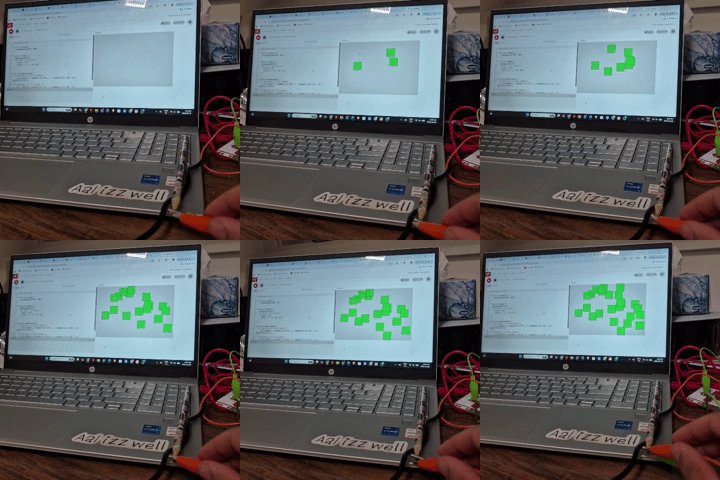
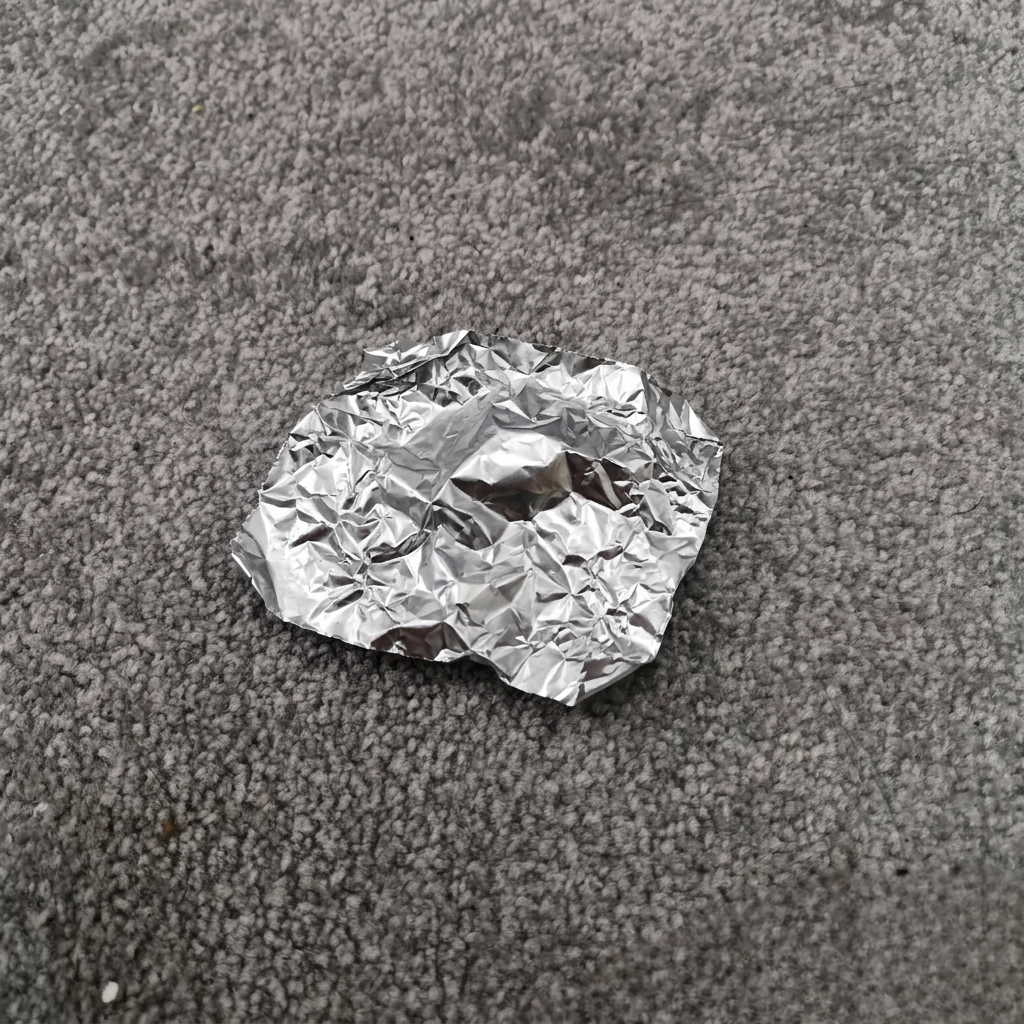
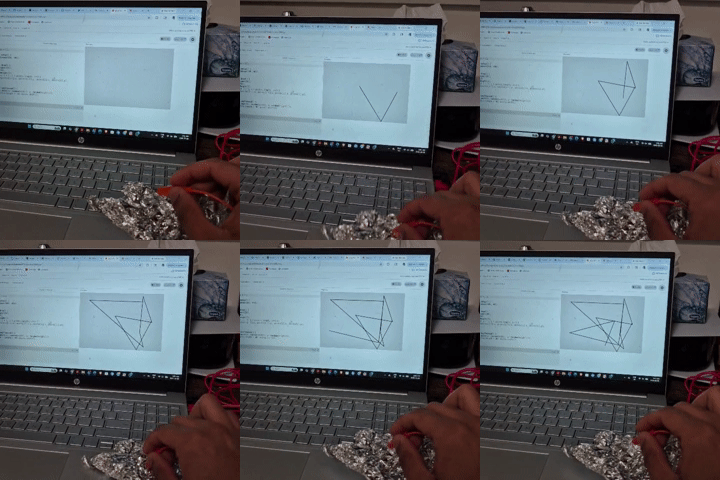
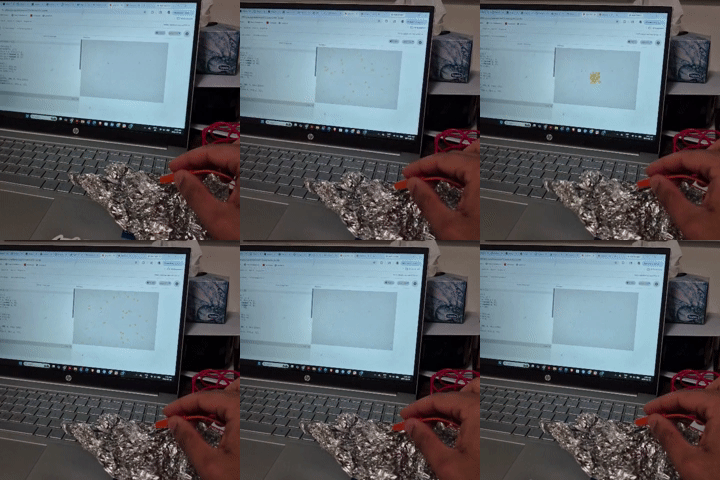
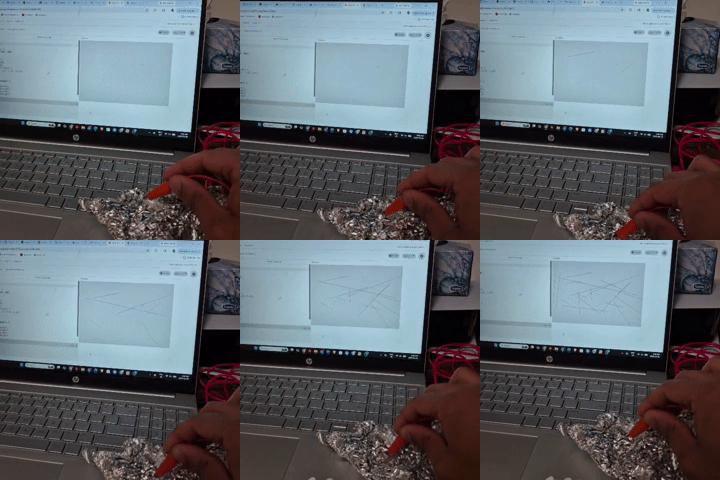
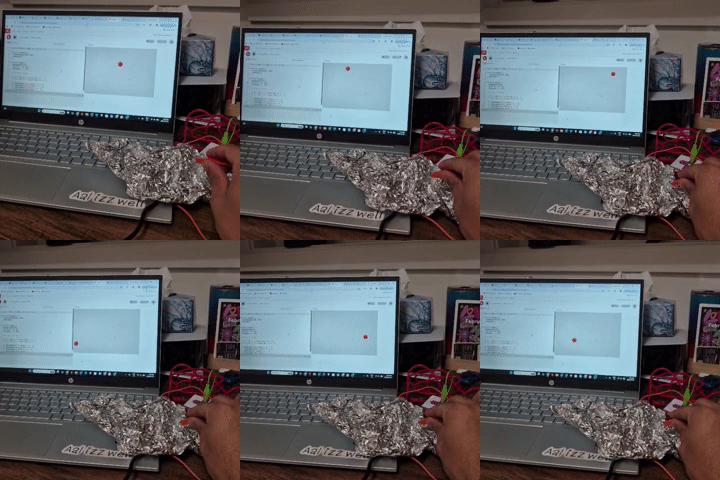
Graphite paint is used to create a conductive house drawing that acts as a touch-based input surface for interaction. Pressing the graphite surface connected to the TOP arrow on the makey makey- triggers green shapes to fall from the top of the screen, simulating a gravity effect. Pressing the graphite surface connected to the BOTTOM arrow on the makey makey - changes the rainbow background, making the colors appear brighter and more vivid. Pressing the graphite surface connected to the SPACEBAR on the makey makey triggers a burst of colorful confetti that spreads across the screen. Pressing the graphite surface connected to the SPACEBAR on the makey makey generates falling emojis like unicorns and rainbows, creating a playful visual effect. A metal binder clip is used as a conductive input, allowing touch interaction through the Makey Makey. Tapping the binder clip connected to the SPACEBAR on the Makey Makey spawns pink circles that grow and gradually fill the entire screen. Tapping the binder clip connected to the RIGHT - on the Makey Makey increases the rotation of the orange square, making it spin more in that direction. Tapping the binder clip connected to the SPACEBAR on the Makey Makey triggers a large yellow explosion effect that expands outward on the screen. Tapping the binder clip connected to the SPACEBAR on the Makey Makey makes the “PRESS SPACE” text rapidly grow in size, creating a sudden pop/jump effect. A Canadian 25-cent coin is used as a conductive touch input, allowing interaction through the Makey Makey. Tapping the coin connected to the SPACEBAR on the Makey Makey generates green squares at random positions across the screen. Tapping the coin connected to the SPACEBAR on the Makey Makey creates sharp random lines across the canvas, forming abstract patterns. Tapping the coin connected to the LEFT - on the Makey Makey forces the bouncing red circle to move left regardless of its current direction. Tapping the coin connected to the SPACEBAR on the Makey Makey triggers a yellow particle explosion that spreads into small pieces. A pencil is used as a conductive material, where the graphite allows touch interaction through the Makey Makey. Tapping the pencil connected to the BOTTOM - on the Makey Makey increases the brightness of the rainbow background, making the colors lighter. Tapping the pencil connected to the SPACEBAR on the Makey Makey spawns random emojis that fall from the top of the screen. Tapping the pencil connected to the TOP - on the Makey Makey moves the small rectangle upward along the screen. Tapping the pencil connected to the LEFT - on the Makey Makey generates green squares at random positions on the canvas. Tin foil is used as a conductive material, allowing touch input to be detected through the Makey Makey. Tapping the tin foil connected to the SPACEBAR on the Makey Makey creates continuous black lines that connect from the previous point, forming evolving shapes. Tapping the tin foil connected to the SPACEBAR on the Makey Makey triggers small yellow explosion particles that scatter across the screen. Tapping the tin foil connected to the RIGHT - on the Makey Makey generates random lines that appear independently across the canvas. Tapping the tin foil connected to the LEFT - on the Makey Makey forces the bouncing red ball to move toward the left side of the screen regardless of its position.

Project 3


Final Project 3 Design

StepSync: Foot-Controlled Interactive Organism
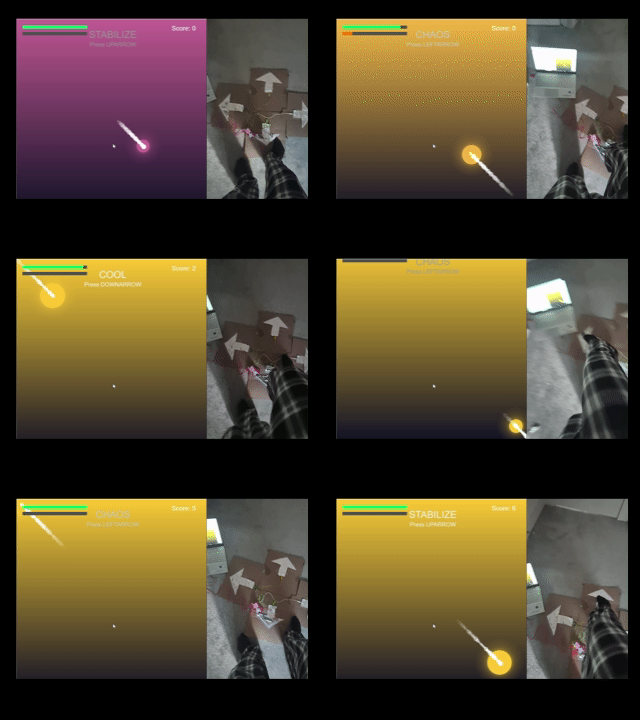
An interactive, foot-controlled game where players respond to arrow prompts on a Makey Makey-enabled board, influencing the motion, color, and effects of a digital organism on screen.
×

Powered by w3.css